What Makes a Great Mac Writing App
There's a specific feeling that comes with using a well made Mac app. Keyboard shortcuts work the way you expect. Windows resize properly. The menu bar has everything organized logically. Text selection behaves correctly. Scroll momentum feels right. You don't think about any of this when it's working, but you notice immediately when it's not.
That feeling is what separates native Mac apps from everything else. And when it comes to markdown editors, the distinction matters a lot, because writing is one of those activities where even small friction adds up. A keyboard shortcut that doesn't respond, a scroll that feels laggy, a window that won't tile properly with another app: these things break your flow.
Indent is built from the ground up as a native macOS application using SwiftUI. It's not a web app in a wrapper. It's not an Electron app. It's a Mac app.
What "Native" Means in Practice
When people talk about native apps, it can sound abstract. So let's make it concrete. Here's what you actually get with Indent on Mac:
Keyboard Shortcuts
Every formatting option in Indent has a keyboard shortcut, and they follow Mac conventions:
| Action | Shortcut |
|---|---|
| Bold | ⌘ B |
| Italic | ⌘ I |
| Heading 1 | ⌘ 1 |
| Heading 2 | ⌘ 2 |
| Heading 3 | ⌘ 3 |
| Insert Link | ⌘ K |
| Code | ⌘ E |
| Toggle Preview | ⌘ P |
These aren't custom shortcuts you need to memorize. They're the same ones you'd expect from any well behaved Mac application. Your muscle memory works here.
Inspector Panel
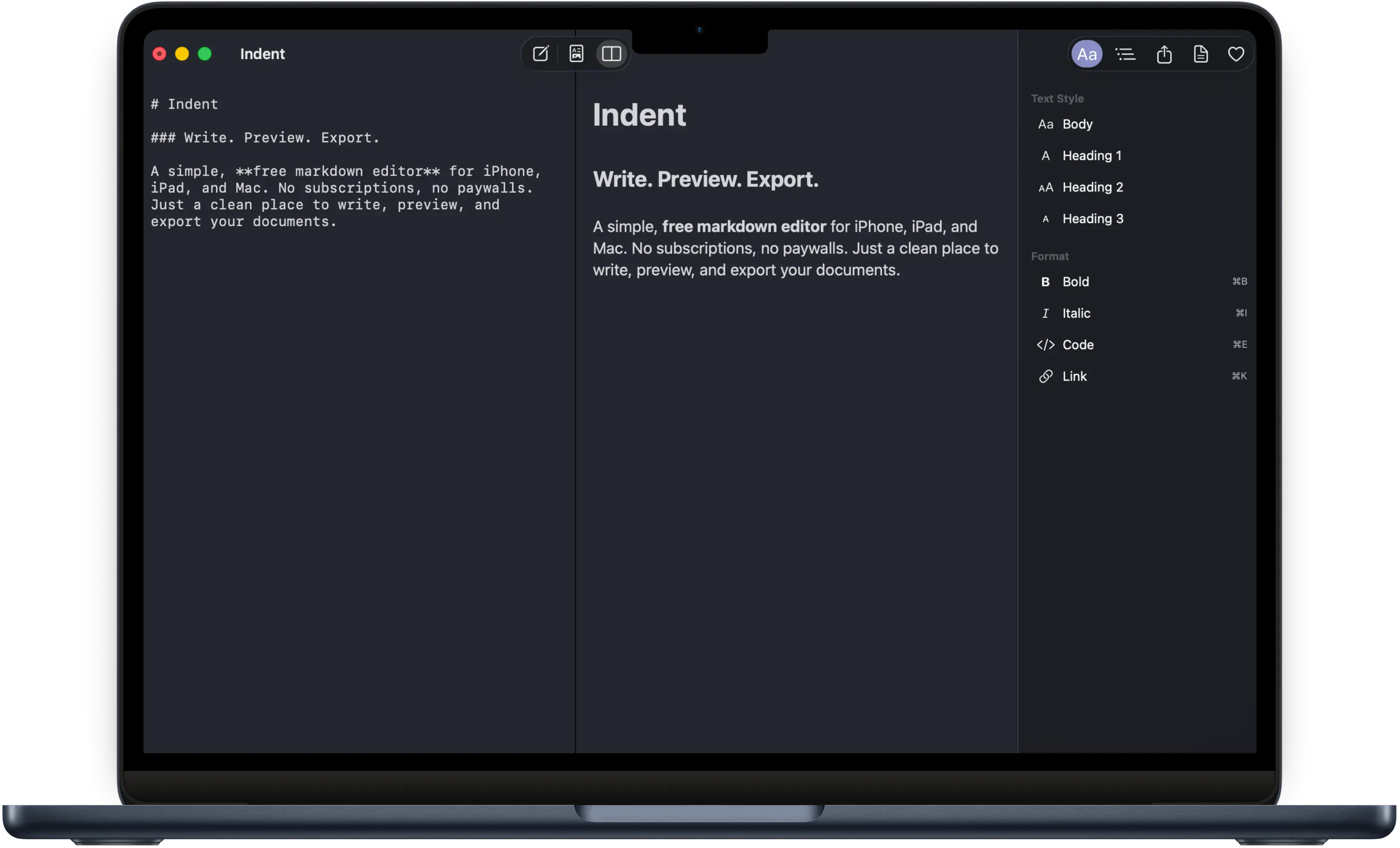
On the right side of the window, Indent has an inspector panel, just like Keynote, Pages, or Xcode. It shows your document outline (auto generated from your headings), and gives you quick access to document settings. You can show or hide it with a click, and it doesn't interfere with your writing space.
Window Management
Indent windows work the way Mac windows should. They can be resized, tiled, moved to different spaces, and put into full screen. If you use a window manager like Rectangle or Magnet, Indent plays nicely with them. If you use Stage Manager, Indent works with that too. This sounds basic, and it should be basic, but it's remarkable how many writing apps get this wrong.
Menu Bar
Every feature in Indent is accessible from the menu bar. File operations, editing commands, view options, export. If you're the kind of Mac user who navigates by menu, everything is where you'd expect to find it.
A surprising number of popular "Mac apps" are actually Electron apps, which means they're running a web browser under the hood. They tend to use more memory, respond more slowly, and miss small details that native apps get right. Indent is pure SwiftUI, running directly on macOS.
The Writing Experience
The best part of using Indent on Mac is that you forget you're using it. That sounds like a backhanded compliment, but for a writing tool, it's the highest praise. The app gets out of the way.
Open a markdown file or create a new document. Start typing. If you want to see how it looks, switch to split view and watch your markdown render in real time on the right. If you want to clean up some formatting, click into the preview and edit directly there. Indent handles the conversion back to markdown automatically.
The split view is particularly good on Mac, where you typically have enough horizontal space to give both the editor and the preview room to breathe. On a 13 inch MacBook, it's comfortable. On a larger display, it's luxurious.
Three View Modes
Indent gives you three ways to work:
- Editor is your raw markdown view. You see the hashtags, asterisks, brackets, and everything else. This is where you go for maximum control.
- Preview renders your document with proper typography and formatting. But it's not read only. You can select text, apply formatting, and Indent converts your edits back to clean markdown.
- Split shows both side by side. Write on the left, see the rendered result on the right. Changes are reflected instantly.
You can switch between these at any time, and each mode remembers your scroll position. On Mac, the split view is the default because you almost always have the screen space for it.
Export That Doesn't Embarrass You
You've written something in markdown. Now you need to send it to someone who uses Word, or post it online, or print it. Indent gives you three export options:
- PDF with proper typographic formatting. Headings are sized correctly, body text is set in a readable typeface, code blocks are monospaced, and the whole thing looks like a professionally formatted document.
- HTML that's responsive and includes dark mode support. Send it to someone and they can open it in any browser. It adapts to their screen size and respects their system appearance preference.
- Markdown for use in other tools, on GitHub, or anywhere that understands the format.
All of this happens through the standard macOS share sheet, so you can also AirDrop your exports, attach them to emails, or send them through any app that supports the share extension.
The Mac Markdown Editor Landscape
There are several excellent markdown editors for Mac. Here's how they compare:
Ulysses
$50/year subscription
The power user's choice. Library management, publishing to WordPress and Medium, goals and statistics. Excellent if you're a professional writer who needs all of that. But it's a significant annual cost for a text editor.
Bear
$30/year for Pro
Beautiful design with a tag based organization system. The free tier is limited. Bear excels at note taking but is less focused on long form writing and document export.
iA Writer
$50 one time purchase
The original distraction free writing app. Focus mode, syntax highlighting by sentence type, and a famously clean interface. A great app if you're willing to pay the one time price.
Typora
$15 one time purchase
Pioneered the seamless editing experience where markdown is rendered as you type. Clean and minimal. A solid choice, though it lacks some platform integration features.
Obsidian
Free (sync costs $8/month)
More of a knowledge management system than a writing app. Incredible plugin ecosystem. Free for local use, but cross device sync is a paid add on. Electron based, not native.
Indent
Free. Completely.
Native SwiftUI, bi directional editing, split view, PDF and HTML export, document outline, three themes. No subscription, no in app purchases, no ads, no account.
Every one of these is a good app made by talented people. The question is what you need. If you need library management and publishing integrations, Ulysses is hard to beat. If you need a knowledge graph, Obsidian is the clear choice. If you need a focused, well built markdown editor that handles writing, previewing, and exporting without any cost, that's Indent.
What Indent Doesn't Do
Indent is a focused tool, which means it intentionally doesn't try to do everything:
- No built in file library or database. Indent works with files on your disk, in iCloud, or wherever you keep them.
- No plugin system. What you see is what you get.
- No publishing integrations. You export, then publish using whatever tool you prefer.
- No wiki linking or backlinks. Indent edits one document at a time.
For a lot of people, this is exactly right. Not every markdown editor needs to be a knowledge management platform. Sometimes you just want to write a document.
Built for macOS, Not Ported to It
There's an important difference between "available on Mac" and "built for Mac." Apps that are built for Mac use the platform's native technologies, follow its design conventions, and integrate with its features. Apps that are ported to Mac were designed for something else, usually the web, and adapted to run on macOS.
You can tell the difference in about thirty seconds. Open the app, try to use Command+Z to undo, try to resize the window, try to drag a file into it, try to use it with VoiceOver. Native apps handle all of this gracefully because the platform gives them the tools to do so. Ported apps often stumble on at least one of these.
Indent was designed for Mac from the start. It uses SwiftUI, Apple's modern UI framework. It integrates with macOS features like the share sheet, Quick Look, and system appearances. It respects your accessibility settings, including Dynamic Type and VoiceOver. It's a Mac app for people who care about using well made Mac software.
Download Indent for Mac
Indent is available as a universal app on the Mac App Store. One download gives you the Mac version plus iPhone and iPad versions at no extra charge. No subscription, no trial, no account required. Open it up, create a document, and see what a native markdown editor feels like.