Your Pro device has a LiDAR scanner that most people never use. Here's what it does, how it works, and the apps that make it worth having.
LiDAR stands for Light Detection and Ranging. In plain terms, it's a sensor that fires thousands of invisible infrared light pulses per second and measures how long each one takes to bounce back. By timing those reflections, it builds a 3D map of everything around it.
This isn't new technology. Self-driving cars use LiDAR. Surveyors use it. NASA used it to map the surface of the Moon. What is new is having it in your pocket. Apple introduced LiDAR on the iPad Pro in 2020 and brought it to the iPhone 12 Pro later that year. Every Pro model since has included it.
The sensor itself is the small black circle near your rear cameras -- easy to miss, easy to mistake for a microphone hole, and easy to forget you have. But it's arguably the most underutilized piece of hardware on your device. While Apple's own camera app uses LiDAR to improve autofocus in low light and enable Night Mode portraits, the real potential gets unlocked by third-party apps.
Think of it this way: your iPhone Pro has the same category of spatial sensing technology used in autonomous vehicles and aerospace engineering. The question is just what you do with it.
The LiDAR scanner on your iPhone Pro or iPad Pro enables a surprisingly wide range of capabilities. Here's the full picture.
This is the killer use case. Point your device at the walls of any room and LiDAR maps the entire space -- walls, doorways, windows, dimensions, the works. Apps like Flooring It turn that raw spatial data into measured floor plans you can export as PDFs, vector diagrams, 3D models, and more. What used to take a tape measure and 30 minutes of careful work now takes 60 seconds of slowly panning your phone.
LiDAR makes augmented reality dramatically better. Without it, AR apps have to guess where surfaces are based on camera data -- which is why virtual furniture sometimes floats six inches above your floor. With LiDAR, your phone knows exactly where every surface is, so virtual objects sit precisely where they should. This is a game-changer for furniture shopping apps, interior design tools, and any AR experience that needs to feel grounded in reality.
Beyond rooms, LiDAR can capture the geometry of individual objects. Walk around a piece of furniture, a sculpture, or an architectural detail and create a 3D model of it. This has applications in e-commerce (product visualization), cultural preservation (digitizing artifacts), and creative work (importing real-world objects into 3D scenes).
LiDAR provides precise depth information that the camera system uses to create more accurate portrait-mode photos, especially in challenging lighting. It also enables features like point-cloud photography, where you capture not just an image but the 3D geometry of a scene.
Apple uses LiDAR data in features like Door Detection (which identifies doors, reads signs, and provides distance information for visually impaired users) and People Detection (which measures the distance to nearby people). These accessibility features rely on the same spatial awareness that powers room scanning.
Game developers can use LiDAR to create experiences that interact with your actual physical space. Imagine a game where characters hide behind your real furniture or climb your actual walls. LiDAR provides the environmental awareness that makes this possible.
Of everything LiDAR enables, room scanning delivers the most practical, everyday value. Here's why.
Everyone has rooms. Everyone occasionally needs to know how big those rooms are. Whether you're buying furniture, planning a renovation, documenting a rental, managing office space, or handling an insurance claim, accurate room dimensions are useful information. Before LiDAR, getting those dimensions meant manual measurement -- a tedious process that most people put off or approximate badly.
LiDAR room scanning eliminates the tedium entirely. You walk into a room, open an app, and let the sensor do the measuring. The result isn't a rough approximation -- it's a geometrically accurate floor plan with real measurements that you can export, share, and actually use for real decisions.
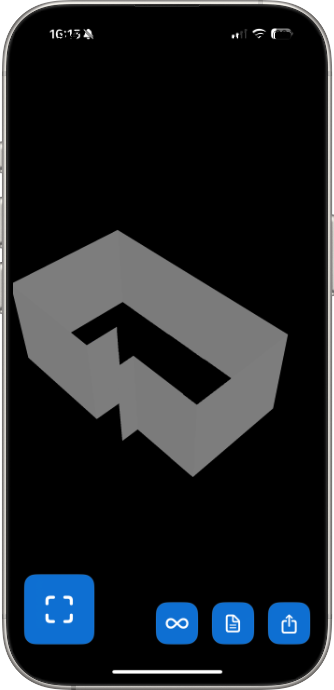
Flooring It is purpose-built for this use case. It takes the raw spatial data from your device's LiDAR scanner and converts it into six different export formats -- PDF floor plans, SVG vector diagrams, USDZ augmented reality models, OBJ 3D meshes, Reality Composer packages, and raw JSON data. One scan, six outputs, each useful for a different purpose.
The scan itself takes about 60 seconds. You point your device at the walls, the app shows you real-time visual feedback as it maps the space, and when it's done you're immediately ready to export. No account creation, no cloud upload, no waiting. The processing happens on your device.
Accurate enough for the decisions most people are actually making. There is no official accuracy figure for the iPhone's LiDAR scanner. Apple has never published one, so be wary of any app that quotes you a precise tolerance. What a scan is reliably good for: ordering flooring, checking whether a sofa fits, handing a floor plan to a contractor. What it is not: a substitute for a laser distance meter when you need millimetre tolerance on a single span.
What changes the result more than the hardware is how you scan. LiDAR measures distance by timing reflected light, so it wants matte surfaces, reasonable light, and a steady walking pace. Glass, mirrors and gloss-black surfaces scatter the signal and are where error creeps in. Scan those walls a little slower and from a slight angle and the geometry holds up.
The practical advantage over manual measurement is not precision anyway. It is completeness. A tape measure gives you the numbers you remembered to take. A LiDAR scan gives you the whole room at once: every wall, every alcove, the awkward corner behind the door, all measured in the same pass and all still there a month later when you realise you need them.
Not every iPhone or iPad has a LiDAR scanner. It's exclusively a "Pro" feature. Here's the complete list of Apple devices with LiDAR:
Devices that do NOT have LiDAR: Standard iPhone models (iPhone 12, 13, 14, 15, 16 -- the non-Pro versions), all iPhone Plus models, all iPad Air models, standard iPads, and iPad mini.
The simplest way: flip your phone over and look at the rear camera array. If you see a small, solid black circle that's distinctly separate from the camera lenses, that's the LiDAR scanner. It looks different from the camera lenses -- smaller, darker, and completely flat rather than slightly recessed.
If you're still not sure, open the Measure app that comes pre-installed on every iPhone. If your device has LiDAR, you'll see a "Level" option and the app will be noticeably faster and more accurate at detecting surfaces. You can also check Settings > General > About -- your device model will tell you whether you have a Pro variant.
The iPhone 16 Pro and Pro Max carry the latest iteration of Apple's LiDAR scanner, paired with the A18 Pro chip. While the LiDAR hardware itself hasn't changed dramatically from previous generations, the processing power behind it has. The A18 Pro's Neural Engine handles spatial data processing significantly faster, which means quicker scan times and smoother real-time feedback in apps like Flooring It.
The iPhone 16 Pro is currently the best iPhone for room scanning -- not just because of LiDAR, but because of the combination of LiDAR accuracy with faster processing and a larger display that makes it easier to see your scan in progress. The iPad Pro with M4 chip offers an even larger canvas and desktop-class processing power, making it the ideal device for professional scanning workflows.
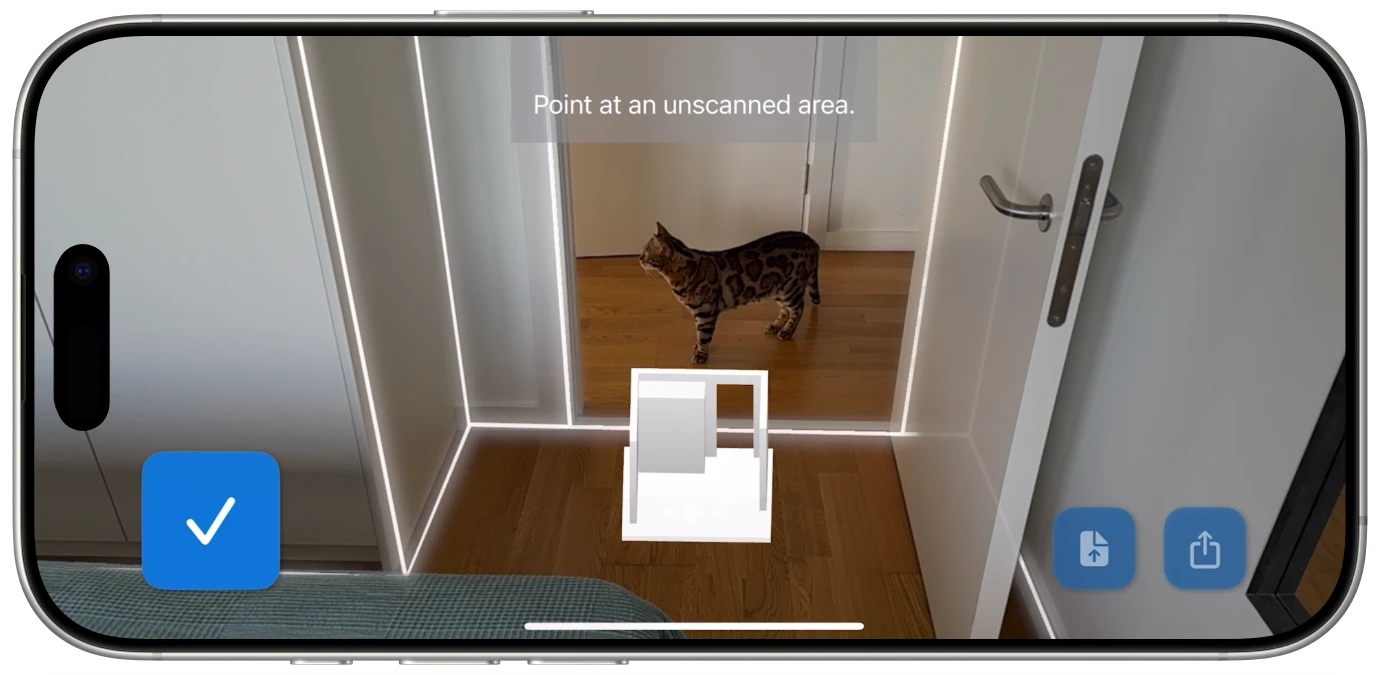
Here are the categories of LiDAR apps that make the most of your Pro device's scanner, along with the standout in each category.
This is where LiDAR delivers its most practical value. Flooring It is a standout here: point your iPhone or iPad at the walls, scan in 60 seconds, and export to six different formats (PDF, SVG, USDZ, OBJ, Reality, JSON). It's fast, it's accurate, and it doesn't require an account or a subscription to use. For anyone who has ever needed a floor plan and didn't want to spend an afternoon with a tape measure, this is the app.
Apps in this category let you scan individual objects and create 3D models. This is useful for product photography, cultural preservation, 3D printing preparation, and creative projects. Apple's own Object Capture API has made this increasingly accessible to developers.
LiDAR dramatically improves AR furniture placement and room visualization. Because your phone knows the exact geometry of the room, virtual objects can be placed with precision -- they sit on real surfaces, respect real walls, and cast realistic shadows. Several major furniture retailers have apps that leverage this technology.
Apple's built-in Measure app uses LiDAR for quick point-to-point measurements. It's useful for one-off measurements but limited compared to dedicated room scanning apps. Think of it as the "quick ruler" option versus the "full floor plan" capability of apps like Flooring It.
Apple's Magnifier app uses LiDAR for Door Detection and distance measurement, providing critical spatial awareness for users with visual impairments. These features are built into iOS and work automatically on LiDAR-equipped devices.
LiDAR is remarkably capable, but a few simple habits will help you get the best results from every scan.
The LiDAR scanner captures thousands of data points per second, but it works best when you move your device at a consistent, moderate pace. Think of it like filming a slow pan -- smooth, deliberate movements produce better results than jerky sweeps.
Make sure your device "sees" every wall surface in the room. Corners and doorways are especially important for accurate measurements. If you skip a wall, the app has to interpolate, which reduces accuracy.
LiDAR measures the first surface it hits. If a tall bookcase is blocking a wall, the scanner will map the bookcase, not the wall behind it. For the most accurate room dimensions, try to give the scanner a clear line of sight to each wall.
Most room scanning apps are optimized for portrait orientation. Holding your phone vertically gives the LiDAR scanner the best vertical coverage, capturing the full height of walls from floor to ceiling.

If you own an iPhone Pro or iPad Pro, you already have a LiDAR scanner. The only question is whether you're using it. Room scanning alone makes the sensor worth having -- a 60-second scan that produces professional-quality floor plans in six export formats is the kind of thing that feels like it shouldn't be possible from a phone.
Try Flooring It. Scan a room. See what your phone can actually do.
Put your iPhone Pro's LiDAR scanner to work.