Get accurate room measurements without a tape measure -- just your phone and 60 seconds.
Before you can scan a room with your iPhone, you need one specific piece of hardware: a LiDAR sensor. Apple doesn't put LiDAR on every iPhone -- only the Pro models have it. So let's make sure you're set up before we walk through the steps.
A compatible device. You need an iPhone 12 Pro or later (that's the Pro and Pro Max models from 2020 onward), or an iPad Pro from 2020 or later. The standard iPhone 12, 13, 14, 15, and 16 do not have LiDAR. Neither do the iPhone Plus models, the iPad Air, or the base iPad. If you're not sure whether your device has LiDAR, flip it over and look at the camera cluster on the back. You'll see a small dark circle near the lenses -- that's the LiDAR scanner.
The Flooring It app. Download Flooring It from the App Store. It's free, and it's designed specifically to turn your LiDAR sensor into a room scanning tool. No account creation, no sign-up, no trial period -- just install and go.
A room to scan. This sounds obvious, but it's worth saying: the room should ideally have its walls visible. A room buried under floor-to-ceiling boxes during a move will give your LiDAR scanner a harder time than a cleared-out space. That said, normally furnished rooms work just fine. You don't need to rearrange your living room to get a scan.
You don't need to understand LiDAR to use it, but knowing the basics helps you get better scans. Here's the short version.
LiDAR stands for Light Detection and Ranging. The sensor on your iPhone fires thousands of invisible infrared light pulses every second. Each pulse travels outward, hits a surface (like a wall, floor, or piece of furniture), and bounces back. The sensor measures exactly how long each pulse took to make the round trip.
Since light travels at a known, constant speed, that timing measurement translates directly into a distance measurement. The LiDAR sensor fires these pulses in a grid pattern, so within moments it has thousands of distance measurements pointing in slightly different directions. Combine all those measurements and you get a dense "point cloud" -- a three-dimensional map of every surface in sight.
This is fundamentally different from how camera-based measurement apps work. Camera apps try to estimate distances by analyzing the visual image -- essentially guessing at depth based on perspective, known object sizes, and other visual clues. They can get you in the ballpark, but they're prone to errors, especially in unusual lighting or with featureless walls.
LiDAR doesn't care about lighting conditions, wall color, or visual complexity. It's sending its own light and measuring its own reflections. That's why it works in dim basements and bright sunrooms alike, and why its measurements are substantially more reliable than camera-based alternatives.
When you scan a room with Flooring It, the app takes all those LiDAR data points and processes them into clean geometry: walls, corners, doorways, and dimensions. The raw point cloud becomes a measured floor plan.
Here's the full process from start to finish. The whole thing takes about 60 seconds for a typical room.
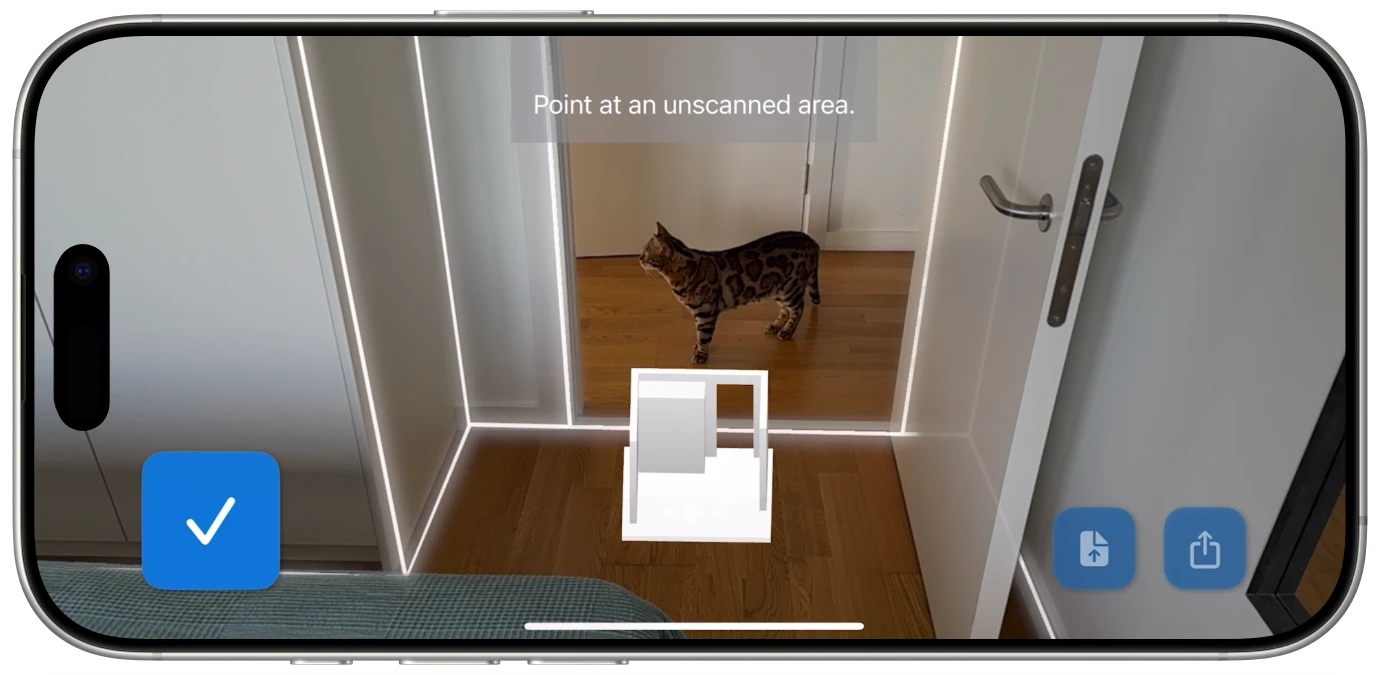
1. Open Flooring It and tap Scan. Launch the app and you'll see the scan option front and center. Tap it, and your iPhone's LiDAR sensor activates. You'll see your camera view with an overlay that will start showing detected surfaces.
2. Point your iPhone at a wall and start walking. Hold your phone at roughly chest height, angled slightly toward the walls. You don't need to be precise about this -- just generally point the device toward the surfaces you want to capture. Start in one corner if you can, then walk slowly along the wall.
3. Watch the real-time feedback. This is what makes Flooring It different from simply pointing and hoping. As you move, you'll see walls outlining themselves on your screen in real time. The app shows you live corner detection, wall boundaries, and room progress. You can see exactly which parts of the room have been captured and which parts still need attention. If a wall section is missing, just point at it for a moment.
4. Walk the full perimeter of the room. Move along each wall, keeping a steady pace. Think "walking through a museum" rather than "sprinting to catch a bus." The LiDAR sensor needs a moment to read each surface, and steady movement gives it the cleanest data. You'll typically walk a full loop around the room, ending roughly where you started.
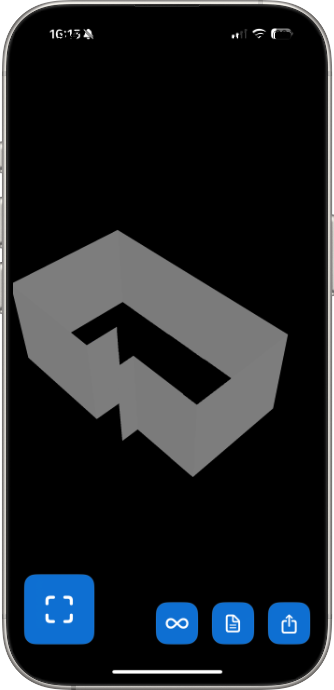
5. Tap Done. When the app shows that all walls have been captured, tap the done button. Flooring It processes the scan data and generates your floor plan with dimensions on every wall. This processing step takes just a few seconds.
6. Review your scan. You'll see a preview of the floor plan with all the wall measurements labeled. Take a moment to check that everything looks right -- all walls accounted for, room shape matching what you see around you.
7. Export. Choose the format you need. PDF for a printable floor plan. SVG for a scalable vector diagram. USDZ or OBJ for 3D models. Reality for Apple's RealityKit. JSON for raw data you can reuse later. Tap Share, and the file goes through the standard iOS share sheet -- AirDrop, email, Messages, Files, whatever works for you.
Flooring It is designed to be forgiving, but a few simple habits will noticeably improve your results.
Start in a corner. Beginning your scan in a corner gives the LiDAR sensor two walls to lock onto immediately. This creates a strong starting reference that makes the rest of the scan more accurate. It's not required -- you can start anywhere -- but corners give the app the most geometric information right away.
Keep a steady pace. Walk at a normal, relaxed speed. Rushing causes motion blur in the LiDAR data, which can lead to a noticeably worse scan. There's no need to creep along in slow motion either. Just walk naturally and let the sensor do its work.
Point at the walls, not the floor. The most important surfaces for room measurement are the walls, since that's where your room dimensions come from. Hold your iPhone at chest height and angle it slightly toward the walls as you walk. You don't need to aim at the ceiling or floor -- the LiDAR will pick those up incidentally.
Good lighting helps your eyes, not the scanner. LiDAR sends its own infrared light, so it works perfectly well in dim conditions. However, the live camera preview on your screen is easier to see when the room has decent lighting. Turn on the lights for your own benefit, even though the scanner itself doesn't need them.
Clear the floor when possible. LiDAR reads surfaces indiscriminately. A large pile of boxes against a wall might be interpreted as part of the wall geometry. For the most accurate wall-to-wall dimensions, scanning with a clear floor gives the cleanest results. That said, regular furniture -- couches, tables, beds -- usually isn't a problem.
Scan one room at a time. For the best results, close doors and focus on one room per scan. Trying to scan multiple connected rooms in a single pass can work, but you'll get cleaner results by handling each room individually.
One of the most common reasons people measure rooms is to figure out the square footage. Whether you're shopping for flooring, estimating paint coverage, or just curious about how big your apartment actually is, here's how to go from a room scan to a square footage number.
For rectangular rooms, it's straightforward math. Your Flooring It scan will show you the length and width of the room. Multiply those two numbers together and you have your square footage. A room that measures 12 feet by 14 feet is 168 square feet.
For L-shaped or irregular rooms, break the space into rectangles. An L-shaped room is really just two rectangles stuck together. Measure each rectangular section from your floor plan, calculate the square footage of each, and add them up. Flooring It labels all your wall dimensions, so you have everything you need right on the floor plan.
For rooms with alcoves or bay windows, use the same approach: identify the main rectangular area, calculate its square footage, then add the square footage of any smaller sections that jut out. Subtract any area that cuts into the room (like a closet bump-out).
The PDF export from Flooring It shows a clean floor plan with all dimensions clearly labeled, which makes these calculations easy to do. Print the PDF, grab a calculator, and you'll have your square footage in a minute. If you're measuring multiple rooms in a home, scan each one individually and add up the totals.
A quick reference for common needs: Flooring calculators typically want the total square footage plus 10% extra for waste and cuts. Paint calculators want wall area, not floor area -- so you'd multiply the room's perimeter by the wall height instead. Having an accurate floor plan with all the dimensions makes both of these calculations trivial.
The scan takes 60 seconds. The real value is in what you do with the results.
Export a PDF floor plan. This is the most common use. The PDF gives you a clean, measured floor plan you can print, email to a contractor, or reference on your phone whenever you need it. It includes all wall dimensions and the overall room shape.
Get vector-quality diagrams. The SVG export produces a scalable vector file that stays sharp at any zoom level. Designers, architects, and anyone creating presentations or documents that include room layouts will appreciate this format.
Create 3D models. The USDZ and OBJ exports give you three-dimensional models of your room. USDZ files can be viewed in augmented reality right on your iPhone -- open the file and see a 3D model of the room overlaid on your real environment. OBJ files import into virtually any 3D modeling software.
Save the JSON for later. The JSON export saves all the raw scan data. Here's why this is useful: if you export a PDF today and realize six months later that you need an SVG or OBJ, you can open that JSON file in Flooring It and re-export to any format without scanning the room again. Always save a JSON copy if there's any chance you'll need the data in a different format later.
Share instantly. Every export format goes through the iOS share sheet. AirDrop the file to your Mac, send it as an email attachment, share it in a Messages conversation, or save it to Files or iCloud Drive. No accounts, no cloud syncing setup -- just the standard sharing options your iPhone already provides.

Different situations call for slightly different approaches. Here's how to handle the ones that come up most often.
Apartment hunting. You're at an open house and want to know if your furniture will fit. Pull out your iPhone, scan the room in 60 seconds, and export a PDF. You now have a measured floor plan to reference later when you're standing in your current apartment staring at your couch and wondering. You can even AirDrop it to your partner on the spot.
Getting contractor quotes. Contractors need room dimensions to give you accurate estimates. Instead of having three different contractors each show up to measure the same room, scan it once with Flooring It and email the PDF to all of them. Saves everyone time and ensures they're all working from the same measurements.
Buying furniture online. That sofa looks great on the website, but will it fit through the doorway and into the corner? Scan the room, check the dimensions on the floor plan, and compare them against the furniture specs before you click "buy." This alone has saved countless people from the nightmare of returning a sectional that turned out to be three inches too wide.
Planning a renovation. Whether you're knocking out a wall, adding built-in shelving, or reconfiguring a kitchen layout, having accurate room dimensions is the starting point. Scan the room, export the floor plan, and use it as the basis for your planning. The SVG export is particularly useful here if you want to bring the measurements into a design tool.
Documenting a property. For insurance purposes, estate planning, or simply having a record of your home, scanning every room creates a digital archive of your entire property. Save the JSON files and you have a permanent record you can re-export anytime.
Selling a home. Real estate listings with floor plans get more attention than those without. Scan each room, export the PDFs, and your listing instantly looks more professional and informative. Buyers appreciate seeing actual dimensions instead of vague descriptions like "spacious bedroom."
Room scanning with LiDAR is pretty reliable, but here are solutions to the most common hiccups.
The scan is missing a wall section. This usually means you moved past that area too quickly or didn't point the device at it directly. Go back and hold your iPhone toward the missing section for a few seconds. The live feedback will show you when it's been captured.
The room shape doesn't look right. Highly reflective surfaces -- like mirrors or glass walls -- can sometimes confuse LiDAR because the light bounces in unexpected directions. If you have a large mirror on one wall, the scanner might read a phantom wall behind it. Try scanning with the mirror covered if you suspect this is the issue.
The app says my device isn't supported. You need an iPhone 12 Pro or later (Pro or Pro Max only), or an iPad Pro from 2020 or later. Standard iPhones, iPhone Plus models, iPad Air, and base iPads do not have LiDAR. There's no workaround for this -- the LiDAR sensor is a physical hardware component.
I scanned a room months ago and need a different file format. If you saved the JSON export, you're covered. Open Flooring It, use the Open function to load your JSON file, and export to whatever new format you need. No re-scanning required. This is the single best reason to always export a JSON copy alongside whatever other format you need in the moment.

Your iPhone already has the hardware. Now give it the app.