From empty room to professional floor plan in under two minutes. No drafting skills required.
Floor plans are one of those things you rarely think about until you suddenly need one. And when you need one, you usually need it soon.
Selling or renting a home. Real estate listings with floor plans attract more interest than those without. Buyers and renters want to see the layout before they visit, and a clean floor plan communicates room sizes and flow better than any photo gallery. Agents who include floor plans in their listings consistently report more engagement and faster decisions from prospective buyers.
Planning a renovation. Whether you're meeting with a contractor, shopping for materials, or sketching ideas on the back of an envelope, a measured floor plan is the starting point. Every conversation about what to change starts with a clear picture of what exists now. Having one on your phone -- ready to pull up or email at any moment -- keeps the project moving.
Arranging furniture. You're moving to a new place and wondering if your dining table will fit. Or you're rearranging your living room and want to try layouts without actually shoving a sofa around. A floor plan with accurate measurements lets you plan spatially before you break a sweat.
Hiring a contractor or designer. Professionals need dimensions. Instead of scheduling a measurement visit, you can send them a PDF floor plan by email before the first meeting. They can start thinking about your project immediately, and you skip the "can we schedule a time for me to come measure?" step entirely.
Insurance and documentation. Sometimes you just need a record of your property's layout. Insurance claims, estate documentation, and property records all benefit from having measured floor plans on file.
The traditional way to create a floor plan involved a tape measure, graph paper, a ruler, and enough patience to measure every wall twice. Or you could hire a professional to do it for you, which costs money and takes time to schedule. With Flooring It on your iPhone, you can create a print-ready PDF floor plan by yourself in about 60 seconds.
The requirements are minimal, but one of them is non-negotiable.
An iPhone Pro or iPad Pro with LiDAR. This means iPhone 12 Pro or later (Pro and Pro Max models), or iPad Pro from 2020 or later. Standard iPhones don't have the LiDAR sensor that makes accurate room scanning possible. If you're not sure about your device, check the back -- the LiDAR scanner is a small, dark circle near the camera lenses.
The Flooring It app. It's a free download from the App Store. No subscription, no account creation, and no paywall between you and a printable PDF floor plan -- free PDF export is unlimited and carries a light watermark. You install it and it works.
That's it. No tape measure, no graph paper, no pencil, no second person to hold the other end of a measuring tape. Just your phone.
Here's every step, from opening the app to having a shareable PDF in your hands.
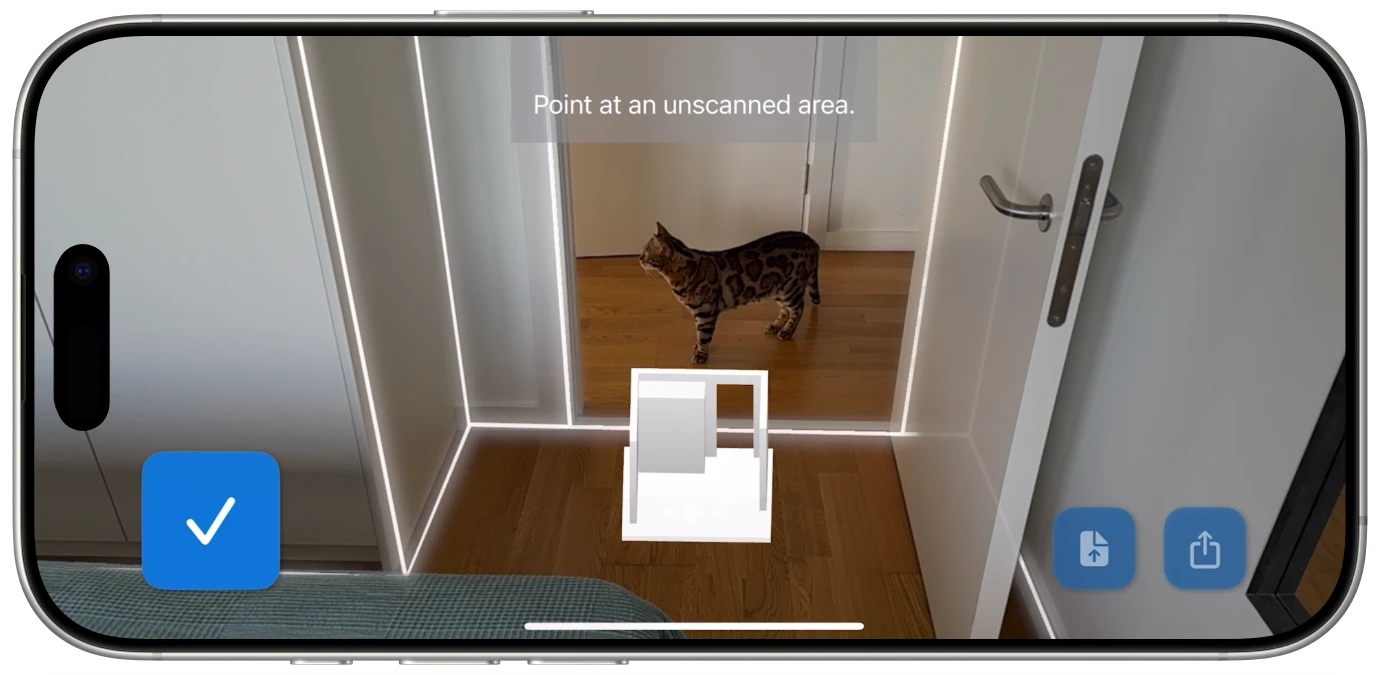
1. Open Flooring It and tap Scan. The app launches to a clean interface with a scan button. Tap it, and your iPhone's LiDAR sensor fires up. You'll see your camera view with an overlay that's about to start mapping your room.
2. Point at a wall and start walking the perimeter. Hold your iPhone at about chest height, angled toward the walls. Start in a corner if you can -- this gives the scanner two walls to reference immediately. Then walk slowly along each wall, working your way around the entire room.
3. Watch the walls outline themselves. As you move, Flooring It shows you real-time visual feedback. You'll see walls appearing on your screen as the LiDAR captures them. The app shows corner detection and wall boundaries as they're identified, so you always know exactly what's been captured and what hasn't. If you see a gap in the wall outline, just point at that area for a moment.
4. Complete the loop and tap Done. Once you've walked around the full room and all the walls are captured (the live feedback makes this obvious), tap the done button. Flooring It processes the scan data in a few seconds and presents you with a floor plan showing the room's shape and all wall dimensions.
5. Review the floor plan. Take a moment to look at the generated floor plan. Check that the room shape matches reality, all walls are accounted for, and the measurements look reasonable. This is your chance to catch anything that looks off before exporting.
6. Export as PDF. Select the PDF export option. Flooring It generates a clean, print-ready PDF floor plan with all your room dimensions clearly labeled. The PDF includes the room outline, wall lengths, and a professional presentation that you'd be comfortable sending to anyone.
7. Share the PDF. The export opens the standard iOS share sheet. From here, you can:
The entire process -- from opening the app to sending the PDF -- takes under two minutes for a typical room.
Not all floor plans are equally useful. Whether you're creating one for yourself or to share with someone else, here's what separates a helpful floor plan from a confusing one.
All walls captured completely. A floor plan with gaps -- where a wall section is missing or a corner doesn't connect properly -- creates confusion. When scanning, make sure the live feedback shows all walls fully outlined before you finish. Flooring It's real-time display makes this easy to verify during the scan itself.
Accurate, readable dimensions. The whole point of a floor plan is knowing how big things are. Flooring It automatically labels every wall with its measured length, so you don't need to add dimensions manually. The measurements appear directly on the floor plan in the exported PDF, clearly positioned along each wall.
A clean room shape. The best scans come from rooms where the LiDAR sensor can see the walls clearly. Furniture is generally fine -- Flooring It handles normally furnished rooms without issues. But if you're scanning a storage room packed floor-to-ceiling with boxes, the scanner might interpret some of that clutter as wall surfaces. For the cleanest floor plan outline, scanning with walls mostly visible gives the best results.
One room per scan. While it's possible to scan multiple rooms in a single pass, you'll get the cleanest, most useful floor plans by scanning one room at a time. Each scan produces one floor plan, and single-room scans are cleaner than trying to capture an entire floor of a house in one go.
Notes about doors and windows. The LiDAR scan captures wall geometry, which means doorways and large windows will show up as openings in the wall outline. This is helpful context -- anyone reading the floor plan can see where the entrances are and how the room connects to adjacent spaces.

Creating the floor plan is half the job. Getting it to the right person in the right format is the other half.
Emailing to a contractor. PDF is the universal format for this. Every contractor can open a PDF, whether they're on a computer, tablet, or phone. Attach the PDF to your email, mention which room it represents ("kitchen floor plan" or "master bedroom dimensions"), and they have everything they need to start estimating. No more scheduling measurement visits for preliminary quotes.
Sharing with a partner or roommate. AirDrop is the fastest option if they're nearby. Otherwise, Messages or email works perfectly. The PDF will display inline on any Apple device, so they can see the floor plan without downloading a separate app. This is great for furniture shopping discussions -- "look at the living room dimensions and tell me if you think the 96-inch sofa will fit."
Including in a real estate listing. Export the PDF, then either attach it to your listing or take a screenshot of it for the photo gallery. Floor plans in real estate listings communicate the property layout in a way that photos alone can't. Agents who include floor plans routinely receive fewer "how big is the bedroom?" questions and more serious inquiries.
Saving for future reference. Save the PDF to the Files app on your iPhone or to iCloud Drive. This way it's accessible on all your devices and backed up automatically. If you think you might need the room data in a different format later, also export a JSON copy -- you can reopen JSON files in Flooring It and convert to any format without re-scanning.
Printing a physical copy. Sometimes paper is still king. AirDrop the PDF to your Mac and print it, or email it to yourself and print from any computer. The PDF is formatted for standard paper sizes and prints cleanly -- it's designed to be a professional-looking document whether viewed on screen or on paper.
If you need floor plans for an entire house or apartment, here's the most effective approach.
Scan each room individually. Walk into a room, close the door if possible, scan, export, and move to the next room. Each scan produces its own floor plan, which keeps things organized and ensures every room gets a complete, clean capture. Trying to scan your entire house in one continuous pass sounds efficient but usually produces messier results.
Name your exports clearly. When you share or save each PDF, give it a descriptive name: "Kitchen Floor Plan," "Master Bedroom," "Living Room." When you're scanning five or six rooms in a row, you'll be glad you kept things organized from the start rather than trying to figure out which "Floor Plan (3).pdf" is the bathroom.
Save JSON copies of everything. This can't be emphasized enough. The JSON export preserves all the raw scan data. If you scan every room in your house today and save the JSON files, you have a permanent archive. Two years from now, when you need an SVG of the kitchen for a renovation project, you just open the JSON and re-export. No need to re-scan.
Consider the order. Start with the most important room -- the one you actually need the floor plan for right now. If you're scanning a whole property, work systematically from one end to the other. This makes it less likely that you'll accidentally skip a room.
Allow about two minutes per room. A 60-second scan plus some time for exporting and sharing means each room takes roughly two minutes from start to finish. A typical three-bedroom apartment can be fully documented in 15-20 minutes. A larger house might take 30-40 minutes. Compare that to the hours you'd spend with a tape measure and graph paper.
Flooring It can export to six different formats, but for the majority of floor plan needs, PDF is the one you want. Here's why.
Everyone can open it. PDF is the most universally supported document format in existence. Any computer, phone, or tablet can display a PDF. You don't need to worry about whether the recipient has specific software installed -- they can view your floor plan the moment they receive it.
It prints perfectly. PDFs are designed to look the same on screen and on paper. When you print an Flooring It PDF floor plan, you get a clean, professional-looking document with accurately positioned measurements. No formatting surprises, no weird scaling issues.
It's easy to annotate. Need to add notes to the floor plan? Most PDF viewers -- including the built-in ones on iPhone, iPad, and Mac -- let you draw, add text, and highlight directly on the document. Circle the area where you want new shelving, add a note about which wall gets the new paint color, draw arrows showing where furniture goes.
File size is small. A floor plan PDF is typically just a few hundred kilobytes. It sends via email instantly, doesn't clog up anyone's inbox, and stores easily in any cloud service.
That said, if you have specialized needs -- vector graphics for design work (SVG), 3D models for AR or rendering (USDZ/OBJ), or raw data for custom workflows (JSON) -- Flooring It has you covered with those formats too. But for the classic "I need a floor plan to show someone," PDF is almost always the answer.

Go from empty room to PDF floor plan in under two minutes.